You open a page to change your website’s header, but the header is nowhere to be found. A tutorial says to open the Site Editor, yet your dashboard has no matching option. Is something missing?
Usually, you need to find the part of WordPress responsible for the change. Let’s follow a small business website—from its services page to its shared header—and give each tool a clear job.
The roles at a glance
- WordPress core: manages content and publishing.
- Theme: provides the design foundation and templates.
- Plugins: add capabilities, including extra blocks.
- Blocks: build content and layouts.
- Site Editor: edits site structure and styles with a block theme.
What WordPress does before you add anything
WordPress is a content management system (CMS): software for creating, organizing and publishing website content. Posts, pages, media uploads, user accounts, drafts and scheduled publishing are built-in features. You do not need another plugin just to publish an article.
- Domain: the address visitors use.
- Hosting: the environment where the website runs.
- WordPress: the application that manages the website.
WordPress.org distributes the software. WordPress.com offers a hosted service built around it; available controls can differ by hosting arrangement. This guide explains the software, rather than a particular hosting plan. The official WordPress.com versus WordPress.org comparison explains the distinction.
How your content becomes a page
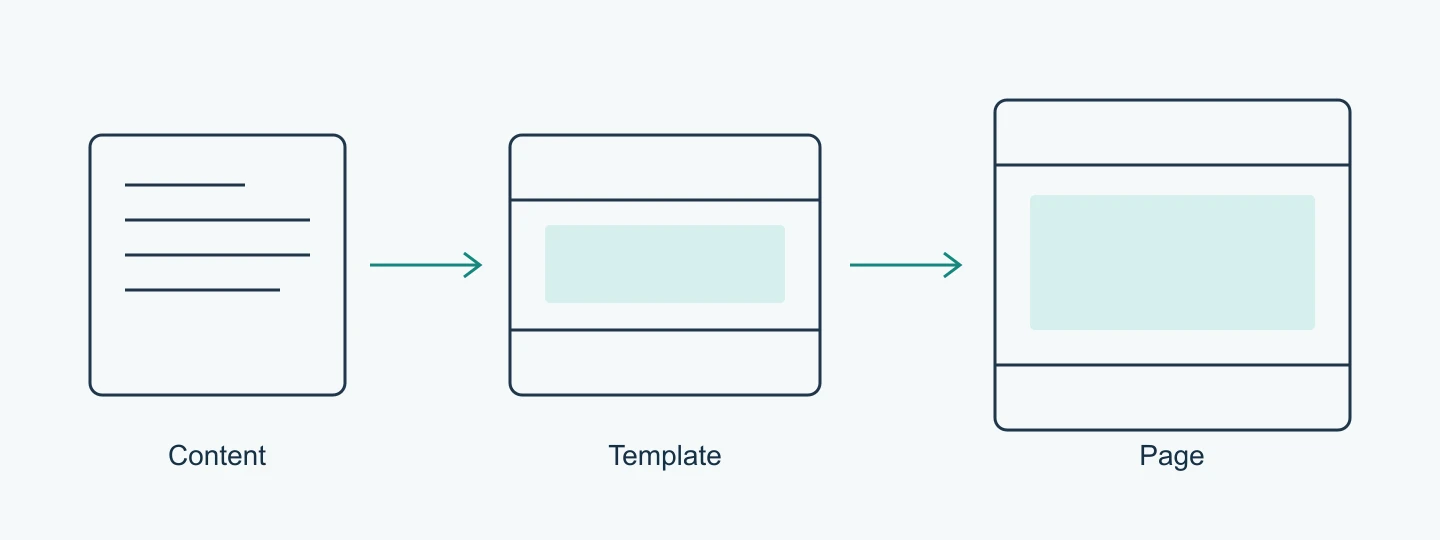
Your services page has its own title, text and images. Its template supplies the surrounding structure. WordPress brings those together when producing the page a visitor sees. Think of content as what you say, and the template as where it appears.
Themes: the design foundation
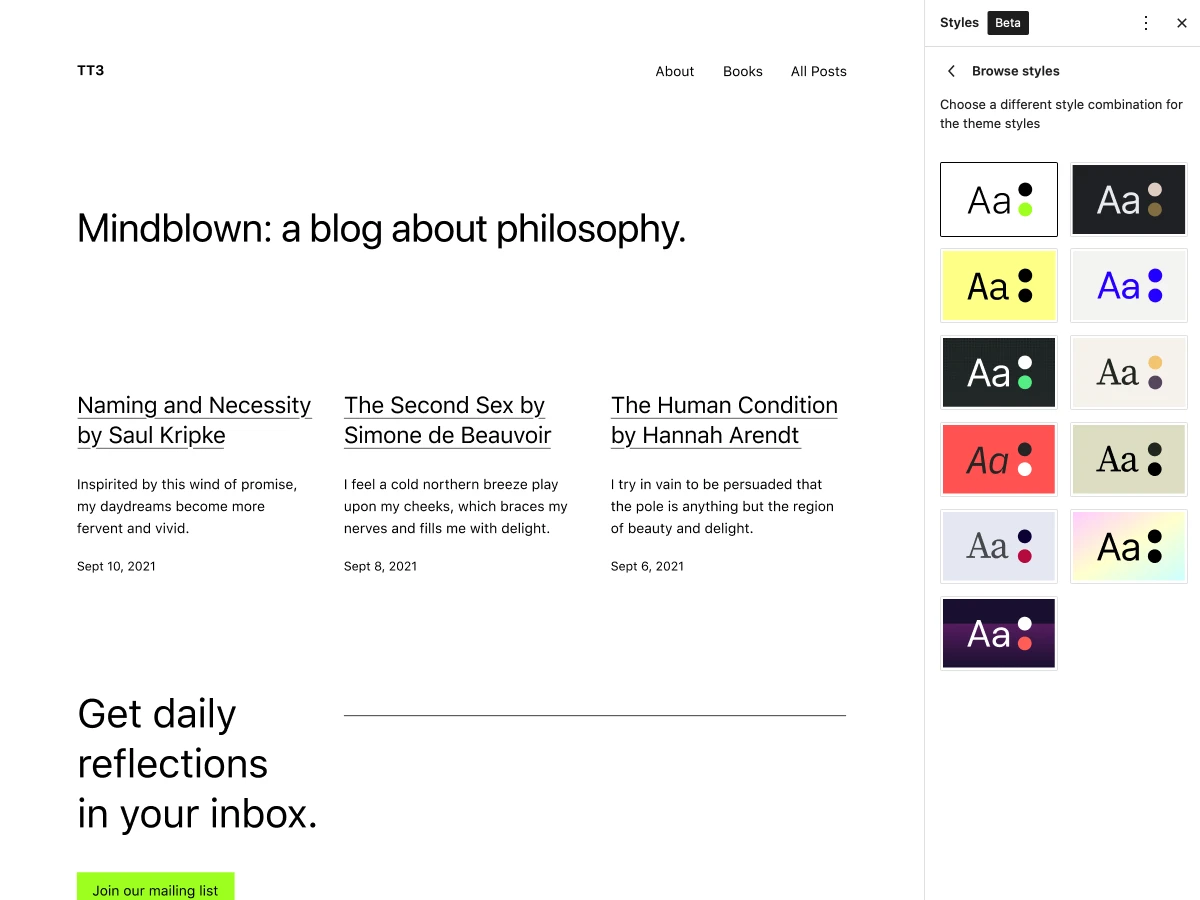
Your theme helps determine layout, typography, colors and how different content types appear. It can give every article a consistent reading width and title arrangement. The theme handbook explains this connection between content and presentation. For a concrete example, Kadence Theme* provides theme-level layout, font and color controls; it is one option, rather than a requirement for following this guide.
Block theme
- Templates are built with blocks.
- Use the Site Editor for shared structure and site styles.
- A natural starting point for learning native site editing.
Classic theme
- Templates are PHP-based.
- Customization depends on the theme: settings, Customizer or other tools.
- Can still support blocks for post and page content.
These are different workflows, not a broken installation. Some classic themes also adopt newer features. See the official guide to themes and the block editor. For a concrete theme-specific example, compare the global typography controls in Kadence.
Changing themes? Check what travels with you.
- Content: stored posts and pages are distinct from the theme.
- Presentation: widths, templates and theme settings may change.
- Dependencies: theme-specific features can need an alternative.
Test the switch on a staging site—a separate testing copy—before changing the live website. Compare your services page before and after: is the text still readable, does the layout still work, and can customers still send an enquiry?
Plugins: start with a requirement
A plugin extends WordPress. It can handle enquiries, add ecommerce features or provide extra design blocks. Start with a specific requirement, then check compatibility and maintenance using the plugin management guide.
Before you install another plugin
- Purpose: what can your current setup not do?
- Overlap: does an existing tool already cover it?
- Upkeep: is it maintained and compatible with your setup?
- Dependency: what stops working if you remove it?
For the enquiry form on your services page, WPForms is one option. Its free Lite version can cover a basic contact form; consider a paid version only if you need features beyond it. Check your existing setup first—an enquiry form does not automatically call for another plugin or a paid upgrade.
Blocks: build the page content
A paragraph, heading, image or list is a block. You arrange these pieces in the WordPress block editor. You can build a useful services page from a few ordinary blocks.
Imagine adding a consultation service. Write the service name in a Heading block, explain who it helps in a Paragraph, then add a photograph. Keep those pieces together in a Group. If the photo should sit beside the description, a Columns block can arrange them. You are building one service section, not choosing another design tool.
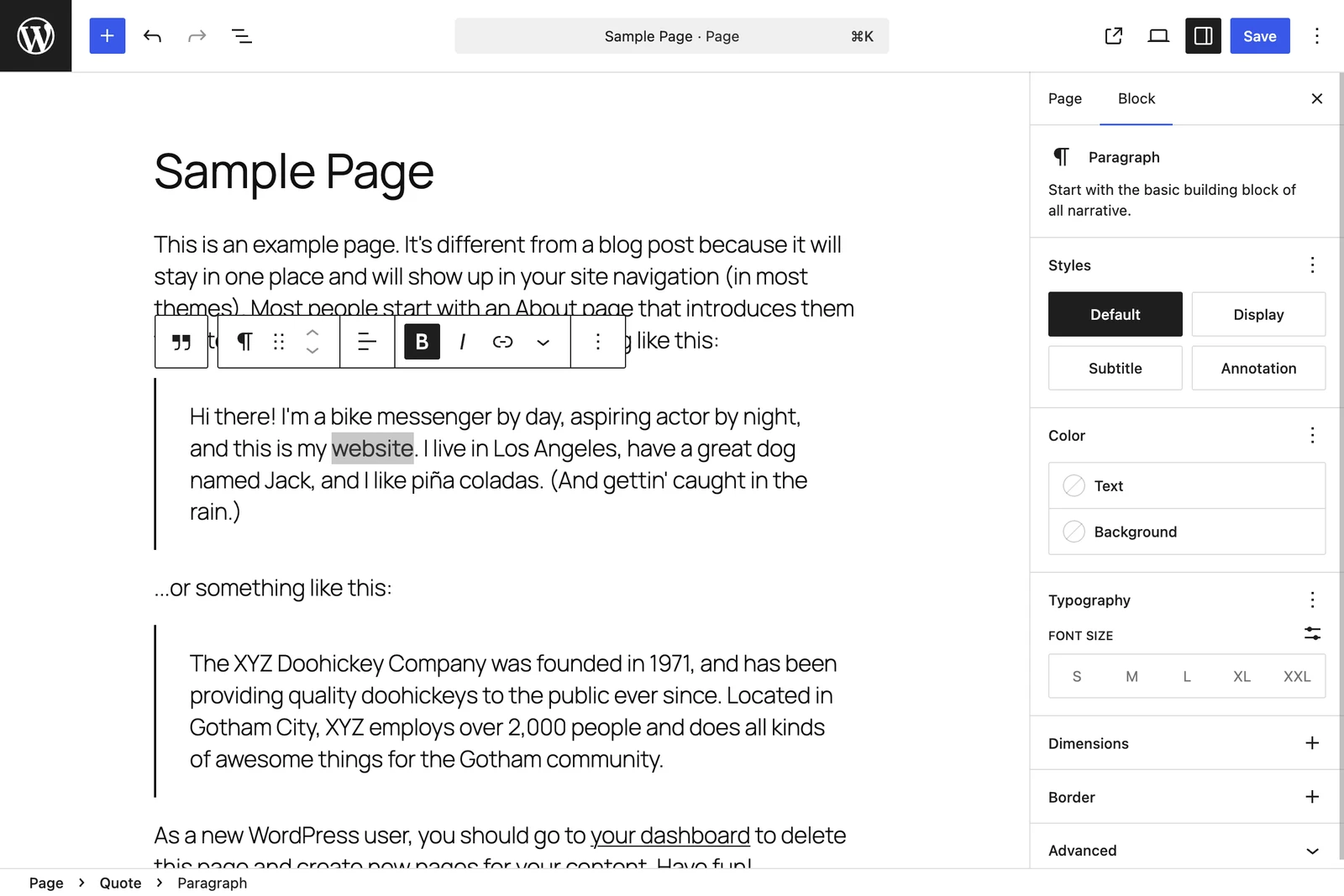
That section uses built-in blocks. Add another library only when you can name a missing capability. You may hear this editor called “Gutenberg”: that is common shorthand, although Gutenberg is the wider project behind the work. You do not need a separate editor to start writing. If the section stays too narrow, check the layout controls in your theme—Kadence Theme* is one example—before replacing its blocks.
Templates and patterns: decide what should repeat
Suppose you want the date below the title on every blog article. Editing the date placement inside the shared article template can change all posts that use it. Rewriting a sentence in one article changes that article. Before saving, check whether you are editing one item or a shared structure.
- Template part: a structural section, such as a shared header or footer.
- Unsynced pattern: a prepared block layout; inserted copies can be adapted independently.
- Synced pattern: a connected shared version used in several places.
Now return to the consultation section you built. Save its layout as an unsynced pattern to reuse the arrangement with different service descriptions. A notice that must stay identical across those pages could use a synced pattern instead. The official comparison explains the distinction: choose according to what a later edit should update.
Block Editor or Site Editor? Check the scope.
One page or post
- Change the service description in that page’s block editor.
- Adjust one image through that block’s settings.
- Your question: which item am I editing?
Shared site structure
- Change a shared header or post template in the Site Editor with a block theme.
- Adjust global typography or colors in Styles, or the equivalent theme controls.
- Your question: how many pages should this affect?
The standard Site Editor requires an active block theme and is accessed through Appearance → Editor. If it is missing, check your theme first; permissions and customizations can also affect the available controls. The Site Editor can access pages too, so the screen name alone does not tell you the scope of an edit.
Styles provides shared design controls for block themes. Explicit local block settings can still produce differences. If content feels too narrow, inspect the template or theme layout before adding another block library; our Kadence layout guide shows a theme-specific example.
| Change needed | Look here first |
|---|---|
| A sentence | Page or post content |
| One image’s appearance | That image block |
| Every article’s layout | The shared article template |
| Enquiry delivery | Form plugin or service |
| Site-wide type and colors | Styles or theme settings |
Try three changes on a test site
Create a draft services page with a heading, paragraph, image and list. Preview it, then try three deliberately different edits:
- Change one sentence. Preview another page and check that it stays the same.
- Adjust a shared design setting. Check which elements follow it. The Kadence color palette guide gives a theme-specific example.
- Find the header controls. With a block theme, inspect the header template part in the Site Editor. Otherwise, identify the theme or builder that supplies it.
If you add an enquiry form with WPForms, send a test submission and check that it arrives. A form can look right on the page even if its notification never reaches your inbox.
For a straightforward business site, I would explore the built-in blocks and a suitable theme first. A separate builder can be useful for a particular workflow, but publishing useful content does not require one. Understand what it controls and what would be involved in moving away from it.
Before your next edit
- What do I want to change?
- How widely should the change apply?
Those two answers usually point you toward the right content, template, theme setting or plugin—before you add another tool.